 InkAIGet the app
A RECORDED TRY-ON EXAMPLE
From reference photo to preview
For this demonstration we used an artificial forearm photo, the refined crescent-and-flower design from our fine line example, and InkAI’s forearm placement workflow. The preview below was returned by the same deployed image service used by the app on October 25, 2026.
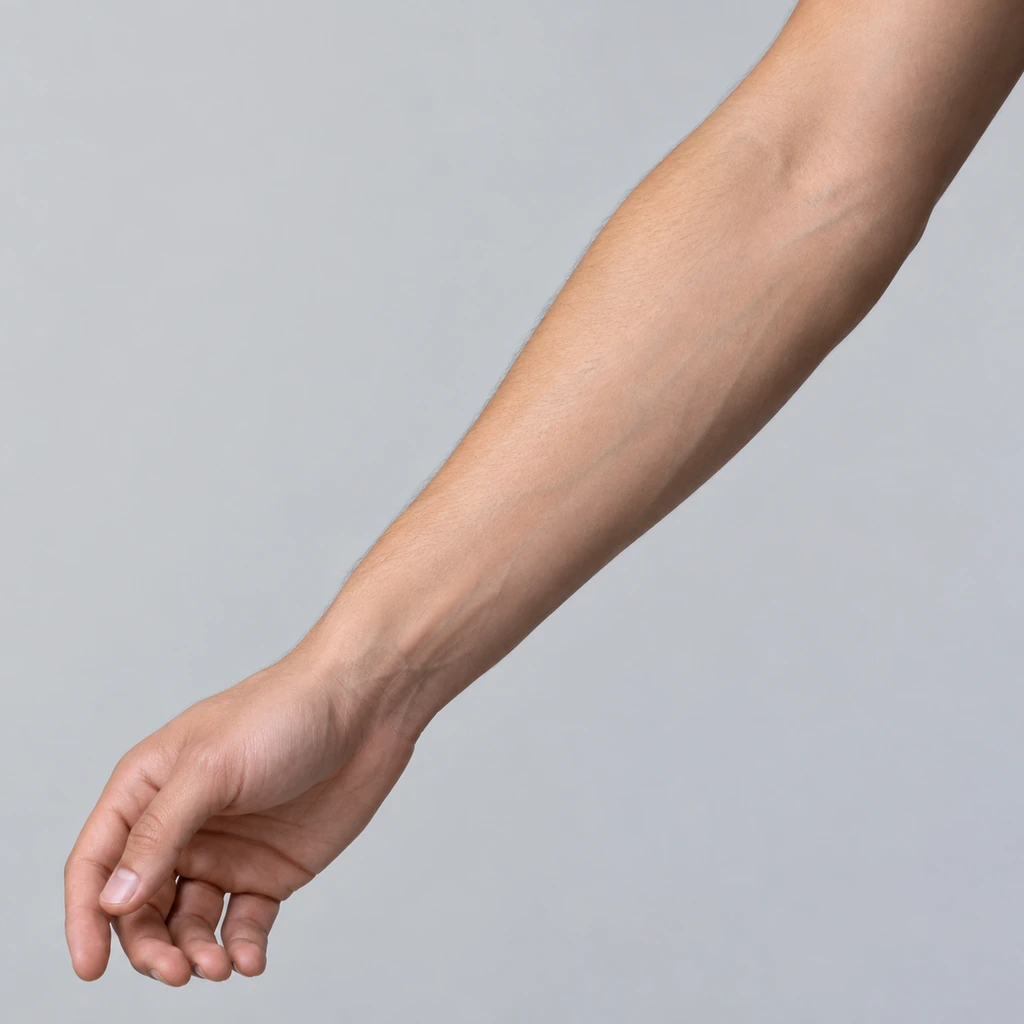
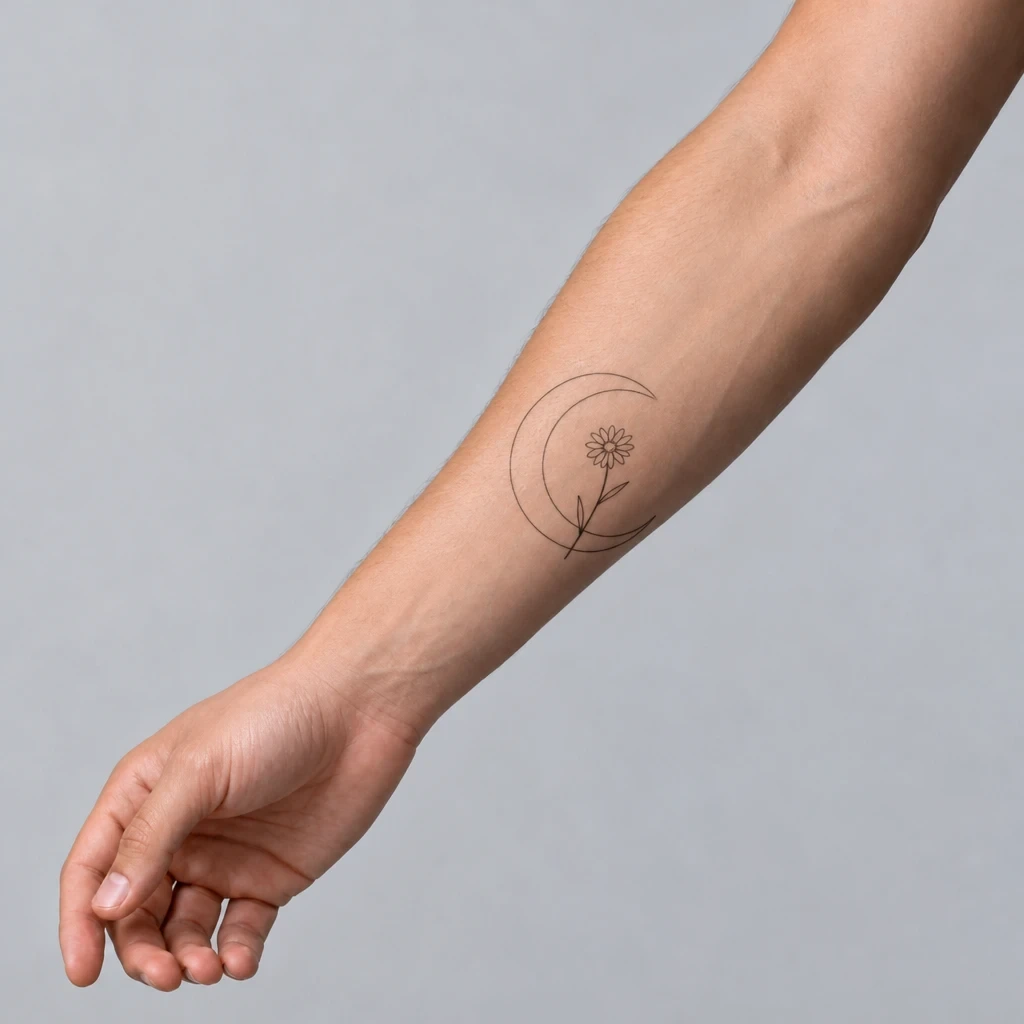
The design used for this preview
We first generated and simplified the fine line crescent design. The app’s workflow overlays the selected design on the reference photo and asks the service to integrate it into the selected area.
What the result shows
The preview puts the crescent and flower on the forearm and removes the white canvas around the concept. It also changes the design’s proportions and the appearance of the skin. Those differences are why this is a visual discussion aid rather than a size measurement or a prediction of finished ink.
Recorded service output, not a screenshot or a guarantee. The reference photo is artificial. Actual app results vary with the design, photo, and request.
Preview an idea before your consultation
A tattoo sketch and a body photo show different things. The sketch helps you compare the design; a try-on preview helps you imagine its relationship to a body area. InkAI applies a concept to a photo you choose. It is a photo-based preview, so you do not need to treat it as a live augmented-reality measurement or a prediction of a finished tattoo.
How to use a tattoo try-on preview
Choose a clear photo
Use a photo where the body area is visible and well lit. A straightforward angle gives you a clearer reference for comparing concepts than an extreme perspective.
Generate or select your concept
Start from a design you want to explore. A clear main subject makes it easier to compare the shape of the concept against the body photo.
Compare one change at a time
Keep the photo the same while you compare a simpler design with a more detailed one. Then compare placement ideas using appropriate photos of each area.
Save references for your artist
Keep the original design and the preview together. Explain which parts you like and which you want changed, so the preview supports a practical consultation.
Make the next version your own
Keep the parts you like and compare one change at a time. These are useful next requests to explore after the recorded example.
- Simplify the leaves while keeping the same curve.
- Compare the botanical idea with a small geometric motif.
- Save the design and a preview to discuss orientation with an artist.
Understand what the preview cannot tell you
A generated try-on may change proportions or invent details. It does not establish real dimensions, guarantee anatomical accuracy, or predict how ink will look on skin. It also cannot replace an artist’s placement and stencil process. Use your preview to explain preferences about shape and direction; confirm actual size and positioning in person. Some generation and try-on features require a subscription or credits. Check the current App Store listing and in-app offer before using premium features.